What are malicious websites, and how can you safeguard yourself?


Malicious websites are created to carry out harmful activity, such as stealing data through phishing or installing malware on your device. They’re often hard to distinguish from legitimate platforms because they’re designed to look trustworthy.
Knowing how to spot and avoid dangerous websites can reduce the risk of data theft, malware infections, and financial fraud. In this article, we’ll explain how these sites work, what happens if you visit one, and how to protect yourself going forward.
Understanding malicious websites
Malicious websites can look like anything, from a flawless copy of your bank's login portal to a seemingly innocent blog about gardening, from a convincing online store selling designer shoes at a 90% discount to a forum thread with a "must-see" video link shared by a friend.
While attack techniques are constantly evolving, malicious websites remain a common attack vector. Attackers use social engineering techniques to trick users into interacting with malicious elements on a website, such as fake update notifications, “Buy” buttons, or links.
How do malicious websites work?
Malicious websites lure users with the appearance of legitimacy. Once a user visits the site or interacts with it, the site may execute hidden scripts or exploits, delivering malware or harvesting data in ways that can be difficult to detect.
Entry vectors: How do users arrive on malicious websites?
Users typically arrive on malicious websites via:
- Malicious ads or redirects: Attackers can inject malicious ads into legitimate ad networks or sites, redirecting users to harmful pages.
- Phishing emails: These emails can include embedded links leading to malicious websites.
- Compromised legitimate websites: Attackers hijack poorly secured or outdated websites and embed malicious links, scripts, or redirects to other websites.
- Search engine manipulation (SEO poisoning): Criminals manipulate search results so compromised pages appear for common queries. Users click on what looks like a legitimate result, only to arrive on a malicious site that may steal their data or install malware.
Execution methods: What happens on a malicious website?
Malicious sites, or compromised legitimate ones, may execute injected scripts, such as those delivered through cross-site scripting (XSS) vulnerabilities. These scripts run in the visitor’s browser, enabling credential theft, session hijacking, and other malicious activities.
Attackers can also exploit browser or plugin vulnerabilities to inject malware into site elements, redirect you to other malicious pages or websites, launch drive-by download attacks (where a device may be infected simply by visiting a site), or hijack your browser session. The latter lets the attacker impersonate you to access websites where you’re logged into your accounts.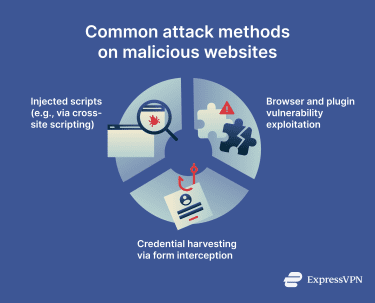
Another attack method is credential harvesting via form interception. Here’s how it works:
- Attackers create a fake page or inject malicious code into an existing one to monitor login or payment forms.
- The script captures data entered into the form before it reaches the legitimate service.
- Captured information is sent to a server controlled by the attacker.
In some cases, attackers overlay transparent or cloned forms on legitimate pages, making the attack visually indistinguishable to users.
Trigger conditions: When does the attack activate?
Based on when an attack is triggered, malicious website attacks can generally be grouped into:
- User-initiated attacks: Users explicitly click on an infected element, such as a link, button, or ad, that triggers a malicious payload to activate.
- Automatic attacks: Malicious code on a page can activate automatically without any interaction from the user. Simply visiting the site may be enough to trigger an attack.
- Geolocation-driven attacks: Some malicious websites trigger attacks based on where the target is located. This lets threat actors launch highly targeted attacks against specific victims.
- Conditional attacks: Exploit kits are a website-based malware distribution method that only activates under certain conditions. The kit analyzes the user’s operating system, browser version, installed plugins, and network security patches to identify vulnerabilities. If it finds none, the attack doesn’t launch.
Types of malicious websites
Not all malicious websites behave the same. Here are some of the more common kinds to be aware of.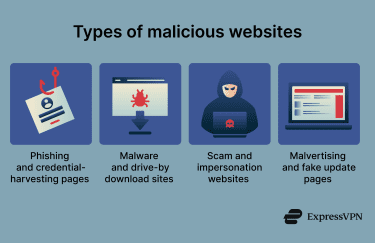
Phishing and fake login pages
The primary goal of phishing and fake login pages is to steal your data, whether that’s personally identifiable information or financial information (like credit card numbers or online banking logins). This type of scam can take many forms, including:
- Fake banking or payment platform sites that attempt to steal your login credentials or claim you need to change your password to remove account limitations.
- Fake shopping sites that may demand credit card updates to renew your account information or offer fake discounts on products you may be interested in. Opening these sites or interacting with elements inside may lead to credential or payment data theft or malware exposure.
- Websites claiming you won a prize and demanding your personal information in order to claim it. Sharing details like your email, payment information, or phone number may make you vulnerable to identity theft or financial loss.
These scams need to convince users to open the malicious website and enter sensitive data in various fields. To do this, they often use psychological triggers like urgency, fear, or curiosity to get users to act impulsively. Once confidential data is harvested, attackers can use it for identity theft or financial fraud.
Malware and drive-by download sites
Unlike phishing websites that steal data, malware sites are designed to install malware on your device, either upon initial access or when you interact with elements on the site, such as buttons or download prompts. The malware may be hidden behind a fake software installation or update, virus protection notification, or even a CAPTCHA prompt.
Drive-by downloads don’t require deliberate user action, and in some cases, simply visiting the site may be enough for malware to be delivered. These sites typically rely on browser or plugin vulnerabilities to execute malicious code in the background.
Once the malware is on your device, the attacker may choose to wait or trigger it immediately to start causing damage. This can include data theft, encrypting your files and asking for a ransom (ransomware), or maintaining unauthorized access to the device to support further malicious activity.
Scam and impersonation websites
Impersonation scams often involve a lookalike website impersonating a brand, service, or trusted authority. These sites often trick users into paying for nonexistent products or services, downloading malicious files, or sharing sensitive information. Common examples include:
- Tech support scams: Fake pages claiming your device is infected and urging you to call a support number or download a “fix” to eliminate the infection. Interacting with the website can lead to malware installation or data theft.
- Job or investment scams: Portals that promise quick payouts or guaranteed returns but demand personal or financial data or require paying a fee upfront. Any data provided to these sites may be stolen and misused.
- Fake delivery or shipping notices: Pages that claim to be from courier services and inform you that a package is on its way, but that you need to pay a small fee beforehand or provide some personal data.
- Typosquatting: A type of impersonation scam where attackers create lookalike websites hosted on slightly misspelled domain names (“exaample.com” instead of “example.com,” for instance).
Malvertising
For malvertising, attackers place or distribute malicious ads through legitimate ad networks. These ads either redirect users to malicious websites or initiate malware delivery through exploit pages or fake updates. This can include spyware (spies on your activities) or adware (displays unwanted ads in your browser or on your device), for example.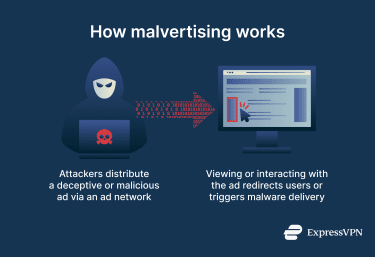
Fake update pages
Fake update pages will typically tell you that you have outdated software that needs urgent updates. These websites often impersonate well-known software like browsers, media players, or operating systems, using familiar logos and wording to appear trustworthy.
Clicking on these updates may inject malicious code into your browser, download malware onto your device, or steal data. Even if no download happens, simply interacting with the page may allow tracking scripts or fingerprinting to collect your browser and device information.
Risks of visiting malicious websites
In many cases, simply visiting a malicious website is less dangerous than interacting with it. The exception is drive-by download sites, which may infect a device without interaction.
In general, however, the main danger comes from clicking links or ads or attempting to log into fake websites. These interactions can lead to several serious risks.
Data theft and account compromise
One of the most common consequences of visiting malicious websites is data theft. Compromised data can include:
- Credit card details and banking information: Used by bad actors to commit financial fraud.
- Physical address and location: Can be used for targeted scams (like tailored phishing messages), identity theft, or fraud.
- Full name and phone number: Potentially used in SIM-swapping attacks, where attackers attempt to convince phone carriers to transfer your number to their device.
- Email addresses: Bad actors may use these for credential-stuffing attacks, where attackers try known email and password combinations from data breaches across other services. Spam, email-based malware delivery, and impersonation are also possible if attackers find out your email address.
- Account usernames and passwords (non-banking): Used for account takeovers.
Malware and device infections
Malware installed from malicious websites may create backdoor access, giving attackers a persistent entry point into your device. Backdoors are typically used to allow additional payloads to be installed, spy on user activities, or remotely control devices.
Financial and identity fraud
Financial and identity fraud are two of the most serious risks from malicious websites.
Attackers in possession of your personal information can use it to impersonate you in official matters, such as applying for a credit card or a loan, or other identity-based activities. While many services have strict identity verification processes that limit abuse, even partial information can be combined with publicly available data and misused.
With financial information like credit card numbers or an IBAN number, bad actors can commit financial fraud. Many banks use fraud-detection measures such as multi-factor authentication (MFA), transaction alerts, and account monitoring, which may limit damage, but reimbursement and protection vary by bank and region.
ExpressVPN’s Identity Defender, available to U.S. customers on the Advanced and Pro plans, includes ID Alerts, which can keep you informed in real time about suspicious activity involving your data.
Identifying malicious websites
There’s no single way to identify a malicious website, but most share common red flags. These can include suspicious domain names, poor design or broken pages, fake security alerts, unexpected redirects, or a lack of basic transparency like contact details or a privacy policy. While one issue alone isn’t definitive, multiple warning signs should raise concern.
For a practical checklist, see our guide on how to check if a website is safe, which walks through quick, reliable checks you can use before interacting with a site. If you’re shopping online, our guide on how to tell if an online store is legit: 12 clear signs to check focuses specifically on spotting fake or scam e-commerce sites.
Website checkers and reputation tools can also help by flagging known malicious domains or showing a site’s history, but they work best when combined with careful inspection rather than used on their own.
Malicious website checkers such as Google Safe Browsing provide quick, point-in-time assessments of a website, evaluating indicators like known blacklisting status, suspicious URLs or redirects, or historical reports of phishing or malware.
Some browser extensions and security software may also display warnings if a website has previously been flagged as unsafe.
Reputation tools like check.spamhaus.org or talosintelligence.com provide a broader, historical perspective on a domain’s trustworthiness. They analyze factors like:
- Past abuse reports or security incidents.
- Hosting and infrastructure patterns.
- Connections to known malicious domains.
- Domain age and ownership patterns.
Reputation tools don’t actively check the website for malware, but they provide context on the domain’s past behavior and associations, helping to identify sites that may be consistently risky.
Used together, these tools can help identify known indicators of compromise or suspicious activity and provide a more complete picture of a site’s trustworthiness.
How to protect yourself from malicious websites
Protection against malicious websites includes following safe browsing practices and using security software that can detect and mitigate threats, as well as knowing where to report suspicious activities.
Safe browsing habits
Developing good browsing habits can improve your online protection. Here are some practical steps that can help reduce the risk posed by malicious websites:
- Be skeptical of online ads in search engine results, social media, or on websites you visit. Typically, if an offer looks too good to be true, it is.
- Refrain from installing codecs or software from pop-ups, especially if they’re unsolicited and unfamiliar. If it doesn’t seem necessary or you don’t know why you need it, it’s generally best not to download or install it.
- Double-check a website’s URL before opening it, even if it’s a site you visit often. Attackers often use URL spoofing (incorrect domain name) or alternative top-level domains (such as “.net” instead of “.com”) to trick users.
- Be wary of urgency-driven pop-ups that claim your account is locked, your device is infected, or that immediate action is required to avoid an unpleasant situation. Legitimate websites typically don’t communicate this way.
- Close potentially malicious websites immediately and refrain from interacting with them. Further interaction may activate malicious code, which can download and install malware onto your device. Scanning with an antivirus may also be a good idea either way, in case of drive-by downloads.
Browser and device security measures
The browser and device you use might be vulnerable to attacks from bad actors. Improving your browser and device security may help reduce the risk of compromise before an attack happens.
One important aspect of device and browser security is software and operating system updates. Keeping your system and browser up to date ensures you have the latest security patches installed. This is an effective way to combat malicious websites because attackers often rely on unpatched software and known vulnerabilities to compromise devices.
Browser extensions tend to increase the attack surface by introducing more elements that attackers can exploit to infect your device. In 2025, the cybersecurity company Koi Security reported a campaign involving 18 malicious extensions that had infected over 2.3 million users on Google Chrome and Microsoft Edge. These extensions hijacked victims’ browsers, tracked website visits, and installed a persistent backdoor into the browsers that gave attackers continuous access.
How and where to report malicious websites
If you come across a malicious website, you can report it across several channels:
- Google Chrome, Mozilla Firefox, and other browsers typically let you report a malicious website in the browser settings. You can also perform a Chrome virus scan to find harmful extensions.
- The Anti-Phishing Working Group (APWG) lets you report phishing emails and smishing texts (phishing SMS texts), which often contain links to malicious sites.
- Internet Crime Complaint Center (IC3) in the U.S. can provide assistance with web-related security incidents.
What to do if you visited a malicious website
If you think you’ve visited a malicious website, it’s best to immediately close the tab and avoid clicking any buttons, pop-ups, or prompts on the page, as any interaction may trigger malicious behaviors or infected scripts. Running an antivirus scan may help identify and remove malware threats at this stage.
If you entered login details or other sensitive information on the site, change your passwords immediately, beginning with the most vulnerable accounts and others that reuse the same credentials. Make sure to choose strong, unique passwords, and enable MFA where available to reduce the risk of account takeover.
Finally, you should monitor your device and browser for unusual behavior (like unexpected redirects, new extensions, persistent pop-ups, or unfamiliar apps), as they can indicate a compromise. If you notice any of these signs, remove the suspicious extensions or software and run a full system scan to ensure the threat is fully removed.
FAQ: Common questions about malicious websites
Can a malicious website steal my personal information?
Yes, malicious websites can steal your personal information, primarily through phishing and fake login pages that trick you into entering sensitive information, or through malicious downloads disguised as legitimate software. Common examples include fake shopping sites, account security alerts, update warnings, or pages claiming you’ve won a prize.
Can a website infect my device without downloading anything?
Yes. Some websites can compromise your security without any user-initiated downloads or clicks. For example, drive-by attacks exploit browser or plugin vulnerabilities to execute malicious code automatically, while script-based attacks like cross-site scripting (XSS) can steal data or redirect users to harmful sites.
How long does it take to remove malware from a malicious site visit?
It depends on the infection. Some malware can be removed in minutes with a quick scan, while more serious infections may require professional help or a full system reset.
Take the first step to protect yourself online. Try ExpressVPN risk-free.
Get ExpressVPN