 Celebrate with up to 80% off
What is screen sharing? A practical guide to safer online collaboration


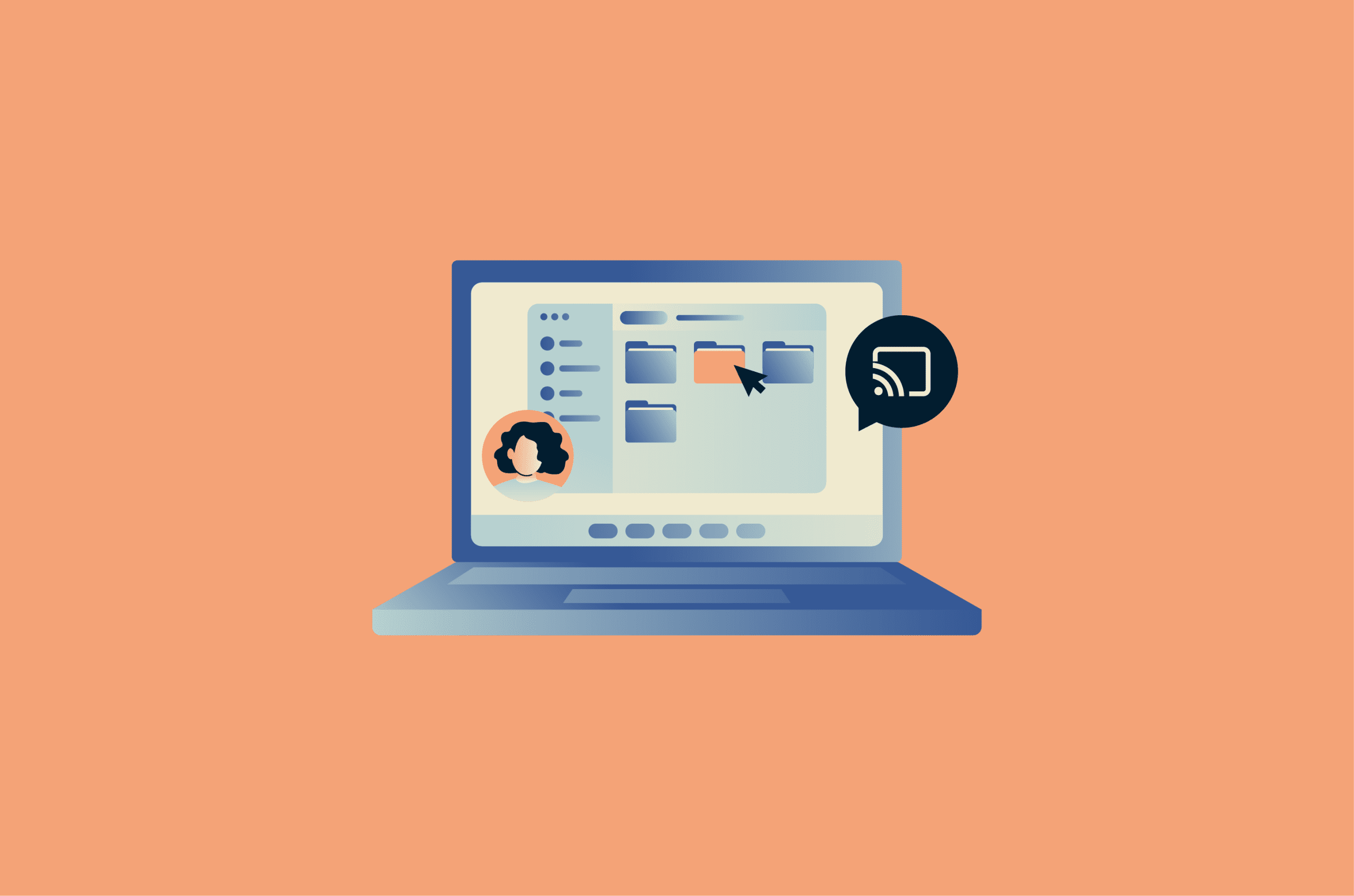
Screen sharing has become a routine part of modern communications. But while the feature is easy to use, it’s also easy to misuse.
Incorrect settings can unintentionally reveal sensitive information, and a support request can become a security risk if the person or organization requesting access cannot be verified.
What is screen sharing?
Screen sharing lets you show what’s on your device’s screen to other people in real time. The app captures the selected screen, window, or tab and transmits it as a live video stream to other participants. It's separate from camera sharing, so viewers won’t see your camera feed unless your camera is also turned on.
Full-screen sharing vs. window sharing
With full-screen sharing, others can see everything on your screen, including notifications, browser tabs, desktop files, and pop-ups as they appear.
With window or tab sharing, others only see the one app window or browser tab you select. This reduces exposure, but it doesn’t make the session private: anything displayed inside the shared window or tab remains visible.
Screen sharing vs. remote desktop control
Screen sharing and remote desktop control are related features that have different purposes. Screen sharing keeps the device under the presenter's control.
In contrast, remote desktop control allows another user to interact with a remote device, including keyboard and mouse input, but only after permission is granted. It’s often used for hands-on tasks like technical fixes, system administration, or accessing a work computer from home.
Also read: Remote Desktop Protocol (RDP): What does it do, and is it secure?
Common uses of screen sharing
Screen sharing supports many forms of online communication, such as:
- Remote work: Presenters can share slides, documents, spreadsheets, or dashboards while speaking with other participants. Some platforms also let presenters share system audio for videos or product demos.
- Remote technical support: Users can show what appears on their screen to avoid back-and-forth descriptions over chat or email and speed up diagnostics.
- Online education and training: Teachers use screen sharing to present lessons and walk learners through assignments. In workplace training sessions, it can help trainers demonstrate internal tools, workflows, or software features.
Privacy and security risks of screen sharing
Screen sharing is useful, but with the wrong setup, it can expose unintended information. Cybercriminals may also use it as part of social engineering attacks.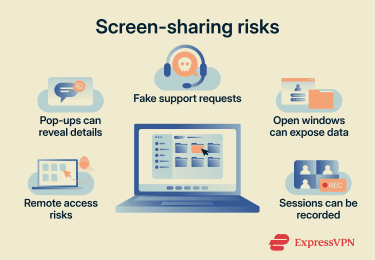
Accidental exposure of sensitive data
Private message pop-ups, email previews, or browser tabs can reveal personal or work-related information not intended for session participants. Sensitive information can also appear in less obvious places, such as a desktop file name, a calendar reminder, a customer record, or a password manager window.
The National Institute of Standards and Technology (NIST) recommends reminding participants not to share sensitive information inadvertently before screen sharing.
Unauthorized recording by participants
Even if a screen-sharing session is temporary, other participants may capture the content using the platform’s native recording feature. They may also take screenshots.
This means anything on screen, including presentations, internal discussions, customer data, or open files, may persist after the meeting ends.
Some platforms notify participants when recording starts, but policies and permissions vary by service.
Social engineering and malicious share requests
In some scams, scammers pose as technical support agents, bank representatives, or coworkers to pressure them into sharing their screen.
Once the screen is visible, scammers may try to gather sensitive information, direct the person to log into an account, or convince them to install software that enables remote access, such as a remote access trojan.
A common tactic is asking the target to open a banking app, email account, or password reset page while screen sharing is active.
Unexpected requests to share a screen are higher risk when the caller creates a sense of urgency or asks for personal, financial, or login details.
Best practices for secure screen sharing
A few precautions before and during a session reduce the risk of information leakage without slowing collaboration.
Share specific windows instead of full screen
If you only need to show one document, app, or browser tab, avoid sharing your entire screen. Many platforms show a border, toolbar, or other visual cue around the shared content, but the exact indicator varies by service, device, and sharing mode.
Close sensitive tabs and applications
Before sharing your screen, minimize or close anything that could expose personal or confidential information during the meeting. This may include email inboxes, chat apps, password managers, internal dashboards, browser tabs, or open file previews. Pop-up notifications can also be turned off where possible.
Control who can join
Open meeting links and reusable meeting IDs make it easier for uninvited users to join, a risk often referred to as Zoom bombing.
For meetings with sensitive content, set up access controls before you send the invite. For example:
- Use meeting passwords or passcodes.
- Generate unique meeting IDs instead of reusing personal meeting rooms.
- Share links only with intended participants via private channels, not on websites, social platforms, or open calendars.
- Restrict access to authenticated or invited users.
- Enable a waiting room so attendees need approval to enter.
- Use host controls to restrict who can share or record content, while keeping in mind that screenshots and external recordings may still be possible.
Once the meeting starts, confirm only approved people are present, watch for unexpected late joiners, and lock the meeting after everyone has joined.
How to share your screen
The exact steps for screen sharing depend on the app and device you’re using. That said, the general steps are the same: you’ll start or join a meeting, choose the share option, select what to show, and stop sharing when you’re finished.
Share your screen in Zoom
Zoom lets you share your full screen, a specific app window, a whiteboard, or your device audio during a meeting.
On Windows or macOS
- Click New meeting to start a meeting or Join to access an existing Zoom meeting.
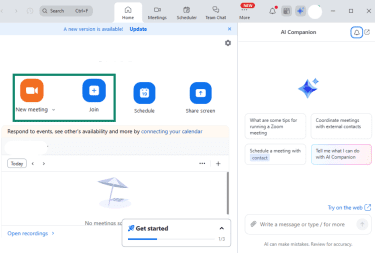
- In the meeting toolbar, select Share or Share Screen.
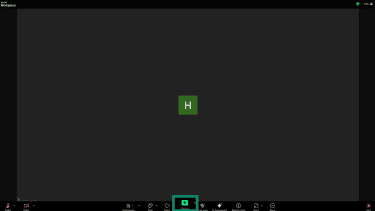
- Choose the screen, window, whiteboard, or audio option to share. Then click Share.
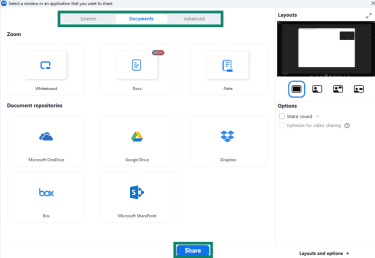
- When finished, select Stop share in the floating toolbar.

On iPhone or Android
- Start or join a Zoom meeting in the Zoom mobile app by choosing Meet or Join.
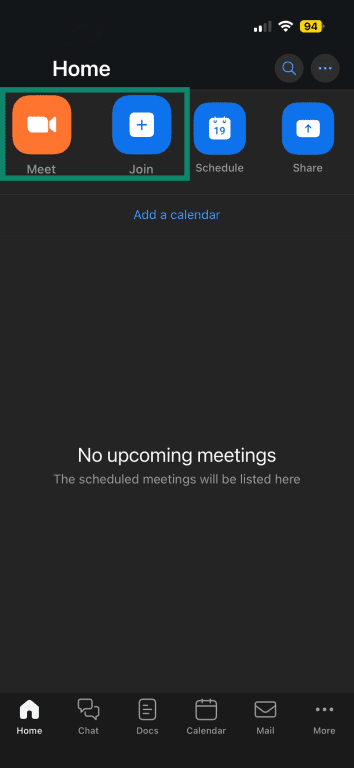
- Tap Share or Share Content in the meeting controls. If it's not visible, tap More first.
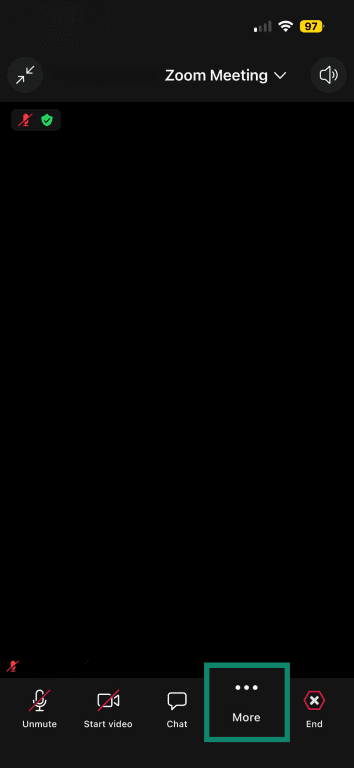
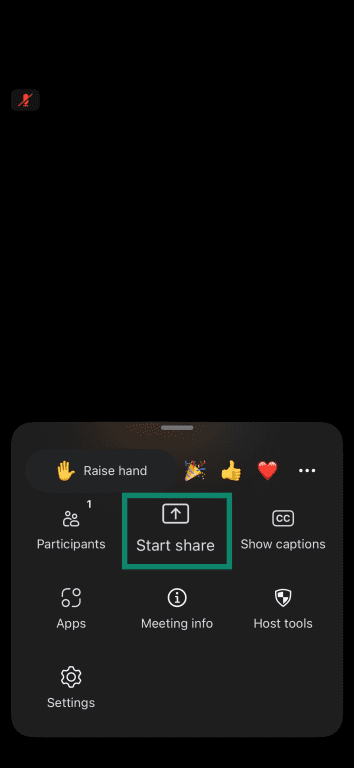
- Tap Start Share.
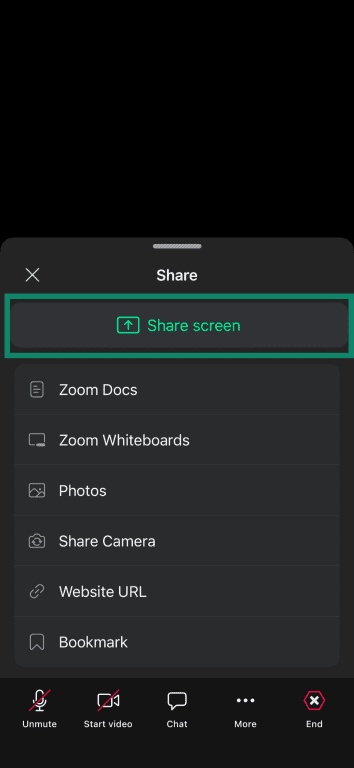
- Tap Share Screen.
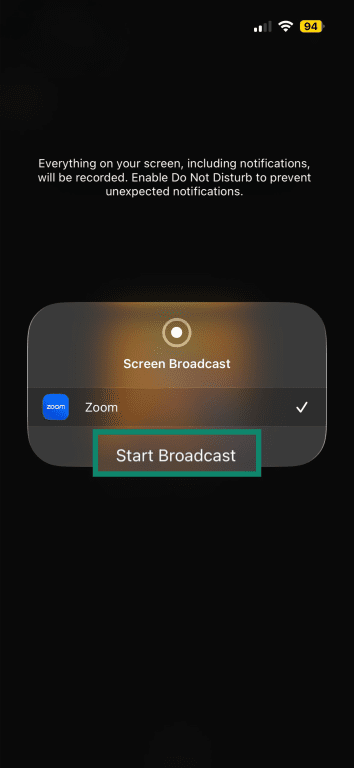
- On iOS, tap Start Broadcast. On Android, tap Start Now.
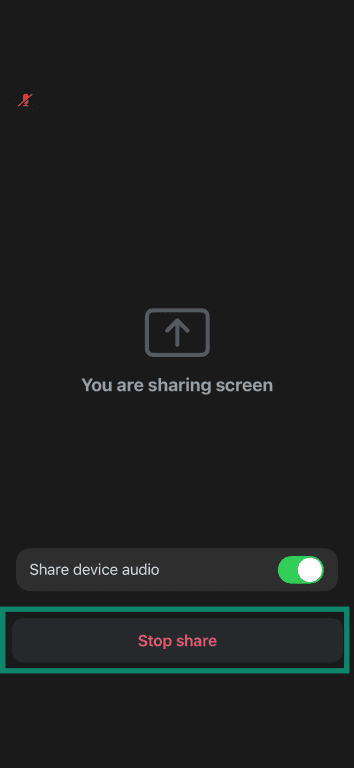
- To stop, tap Stop share. On iOS, the red screen-sharing indicator can also be tapped to stop the broadcast.
On either operating system, you may need to grant Zoom permission to record your screen.
Also read: What you need to know about Zoom security.
Share your screen in Microsoft Teams
Microsoft Teams lets you share your full screen, a specific window, a PowerPoint file, an Excel file, or a whiteboard during a meeting, depending on meeting settings and organizational policies.
On Windows or macOS
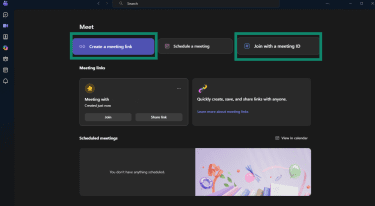
- Start or join a Teams meeting by clicking the Create a meeting link or the Join with a meeting ID link.
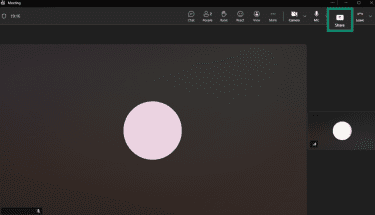
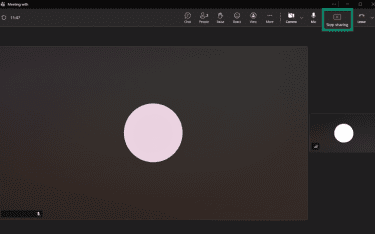
- From meeting controls, select Share or Share content.
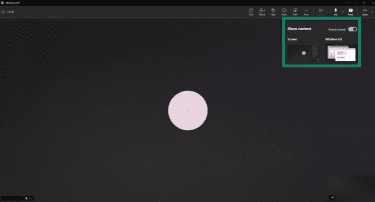
- To share audio from the device, turn on Include sound. Then choose what to share, such as Screen or Window.
- Teams may show a border, toolbar, or other indicator around the shared content.
- Click Stop sharing when you’re finished.
On iPhone or Android
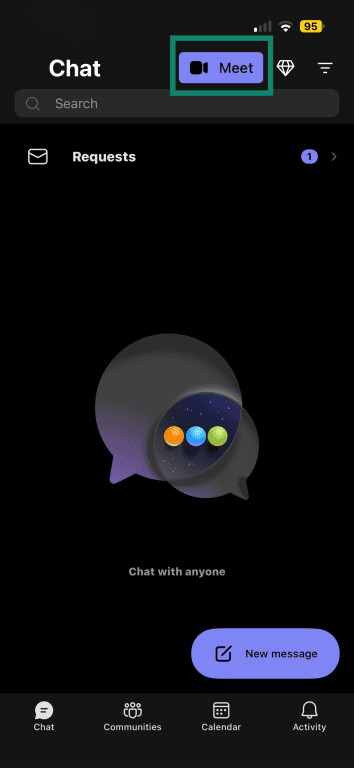
- Start or join a Teams meeting by clicking the Meet icon.
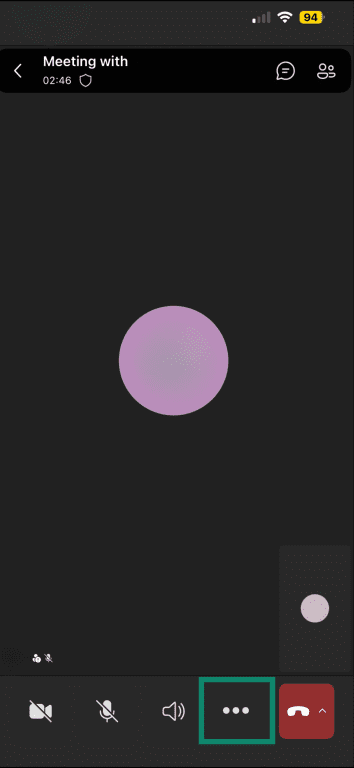
- Tap the three-dot icon at the bottom to see more options.
- Tap Share.
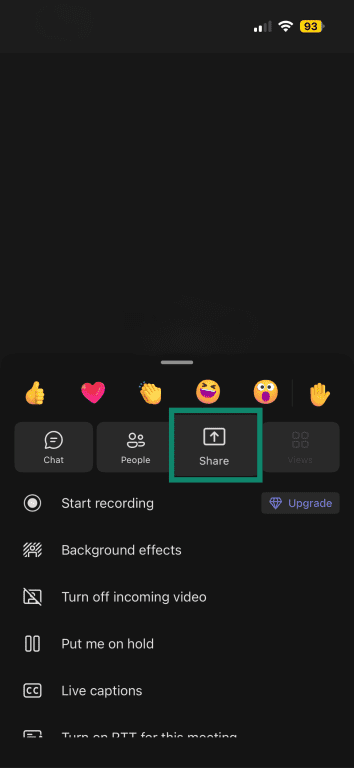
- Tap Share screen.
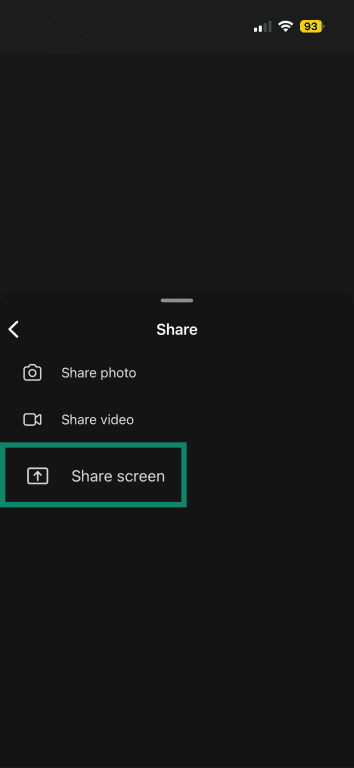
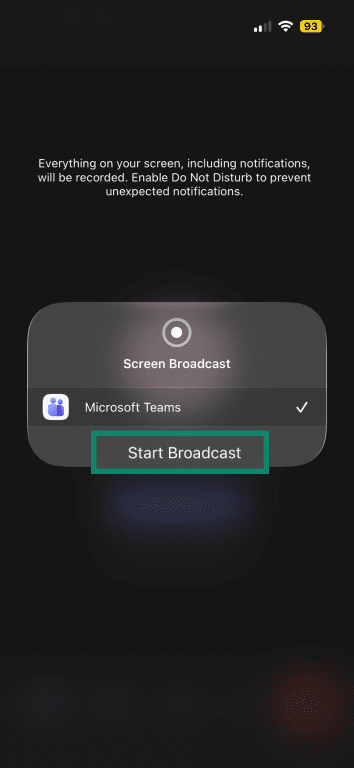
- On iOS, tap Start Broadcast. On Android, confirm the system screen-sharing prompt if one appears.
- To stop, tap Stop broadcast, Stop presenting, or Stop sharing, depending on the device and prompt.
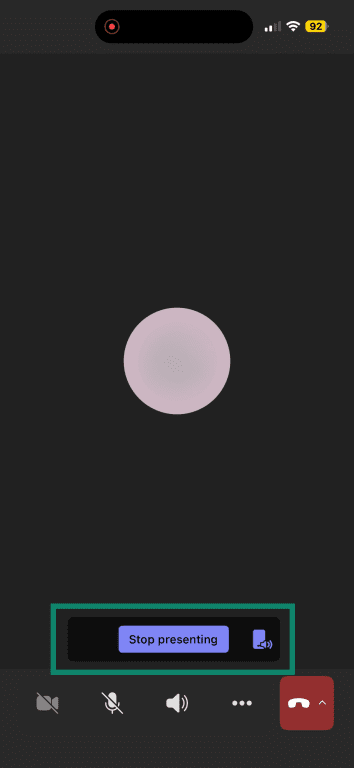
Teams or the device may ask for permission to capture the screen before sharing begins. Audio sharing may require a separate option or permission.
Share your screen in Google Meet
Google Meet lets you present a tab, a window, or your entire screen. On mobile, phone screen sharing is available through the Meet app.
On Windows and macOS
- Click New meeting to start a meeting, or enter a code or link to join an existing call.
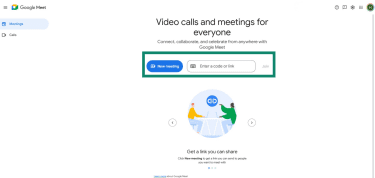
- At the bottom, click Present now.

- Select a Tab, a Window, or Entire screen, then click Share.
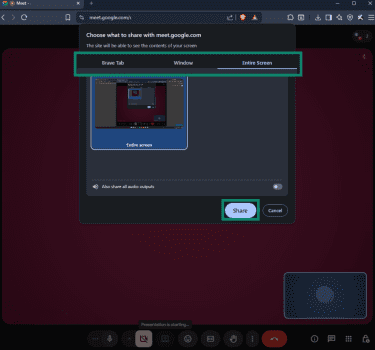
- To stop, click Stop presenting.
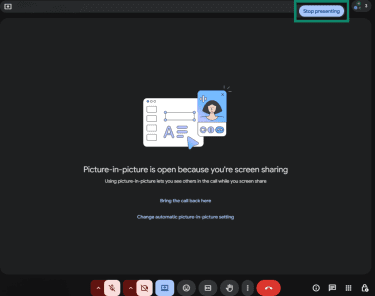
On iPhone or Android
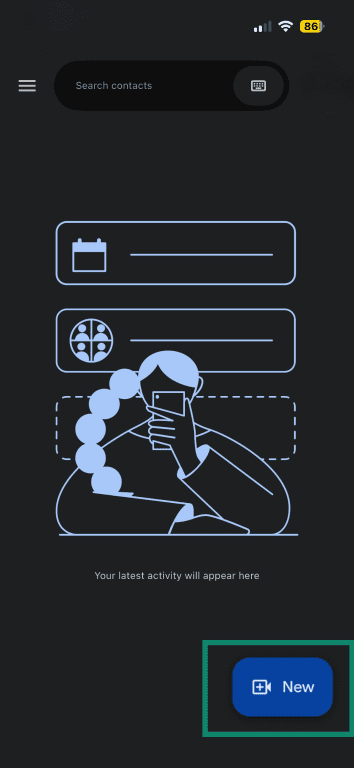
- Tap New to start or join a meeting in the Meet app.
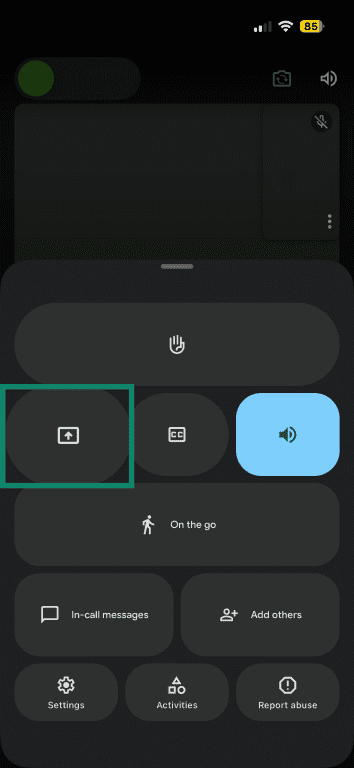
- Tap the screen, then tap the three-dot icon at the bottom.
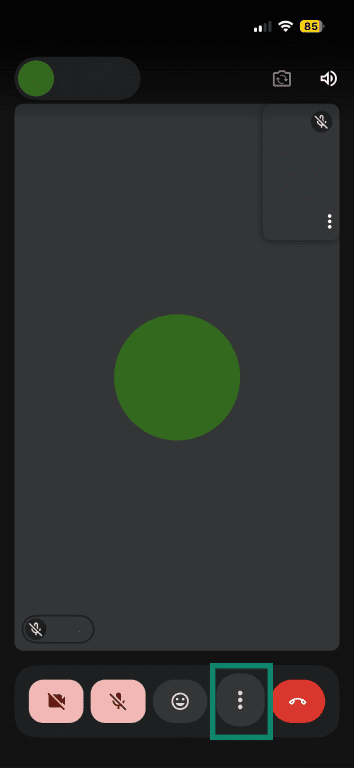
- Tap the screen share icon, then tap Start sharing.
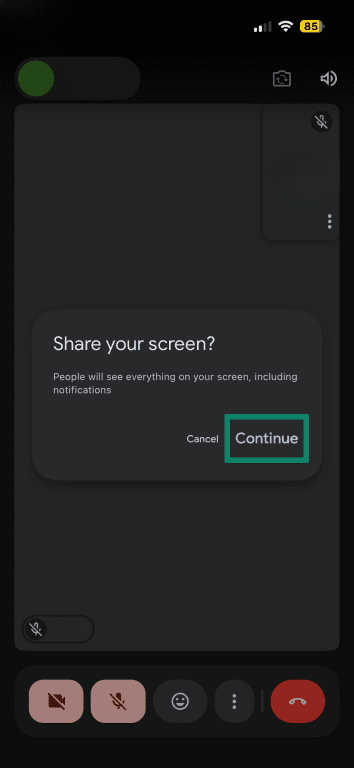
- Tap Continue to confirm the broadcast prompt if it appears.
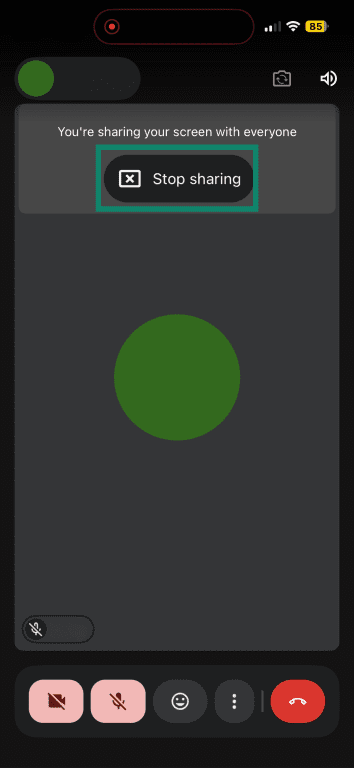
- To stop, return to the meeting screen and tap Stop sharing or Stop presenting, depending on the device and prompt, then OK.
Share your screen on WhatsApp
On Windows or macOS
- Open the WhatsApp desktop app, open a chat, then click the Video icon to start a video call.
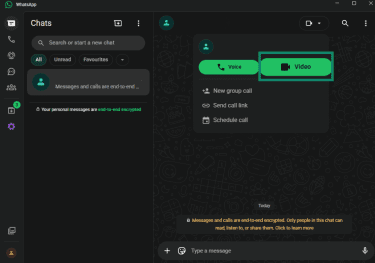
- Click the screen-sharing icon at the bottom.
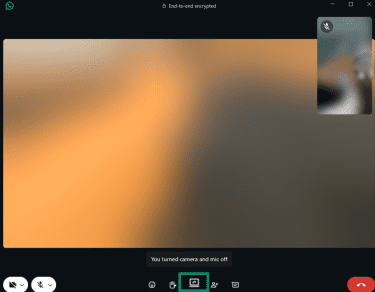
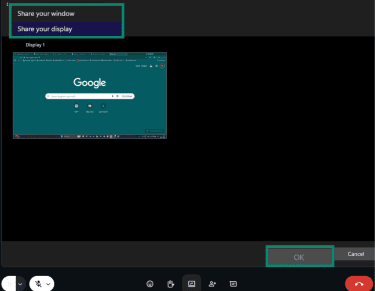
- Choose Share your window or Share your display, then click OK to confirm.
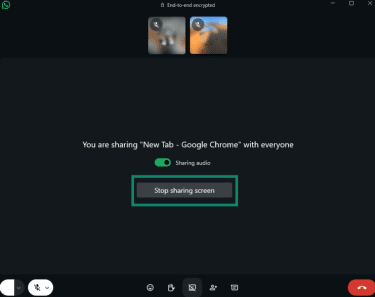
- Click Stop sharing screen when you’re finished.
On iPhone or Android
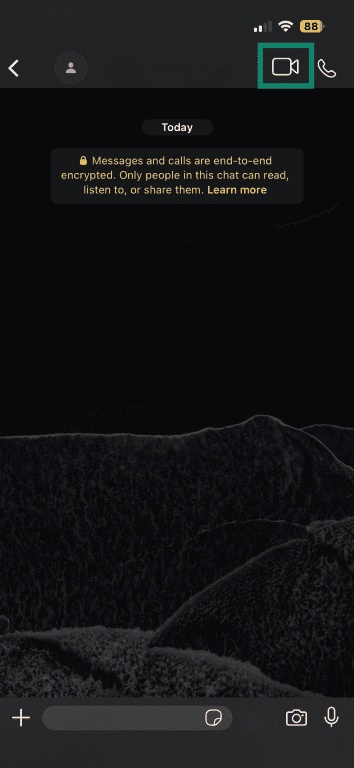
- Tap the video camera icon to start a WhatsApp video call.
- Tap the three-dot menu icon at the bottom.
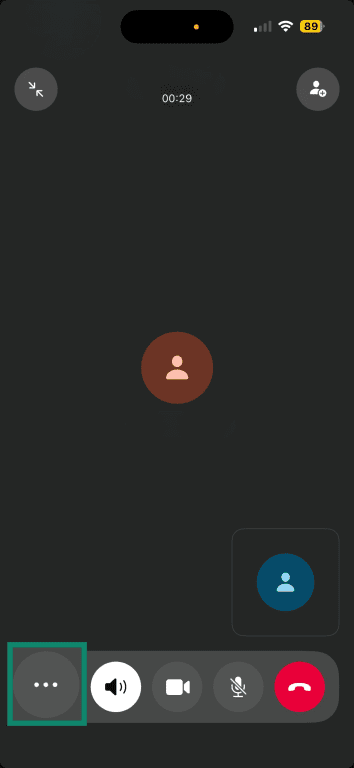
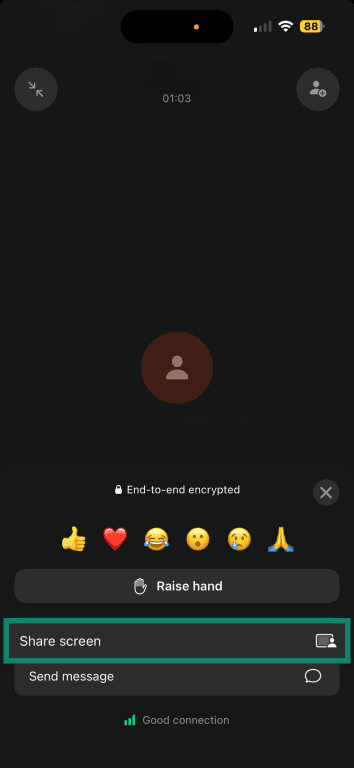
- Tap Share screen.
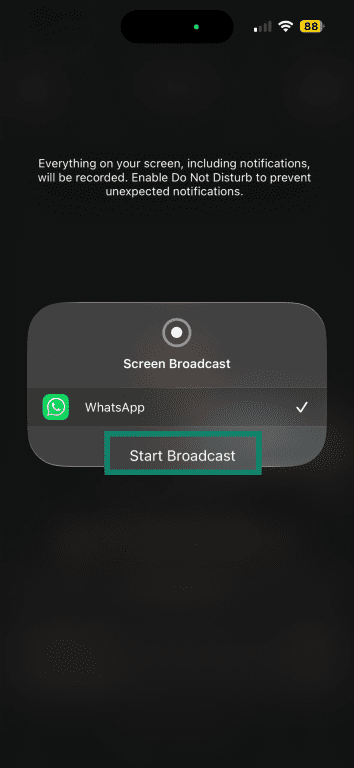
- On iPhone, tap Start Broadcast. On Android, confirm the screen-sharing prompt if one appears.
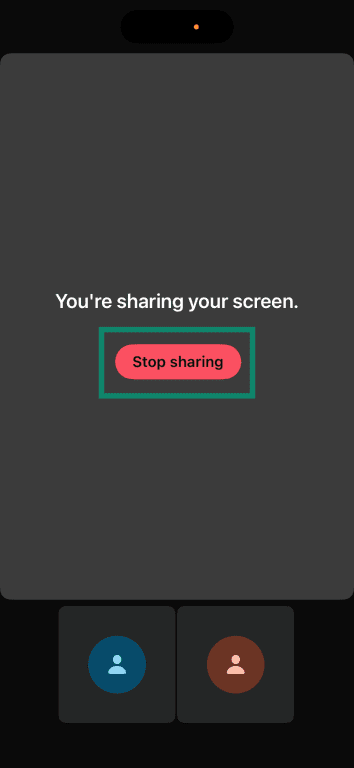
- To stop, return to WhatsApp and tap Stop sharing.
FAQ
Is screen sharing safe for confidential information?
Does screen sharing use a lot of data?
Can multiple people share screens at the same time?
Can you share audio while sharing your screen?
Should you share your full screen or one window?
What should you close before sharing your screen?
Can screen sharing work without video?
Which screen-sharing tool is best for beginners?